Icons - Gingr
Operating Procedure
Icons are a way to view important information about a pet or client conveniently. Follow this overview on icons to learn how to add, delete, view, and understand icons on Gingr!
What are 'Icons'?
- Icons display important information about a pet or customer with a quick glance.
- They can display what a pet typically gets, characteristics, type of play they are in, and much more!
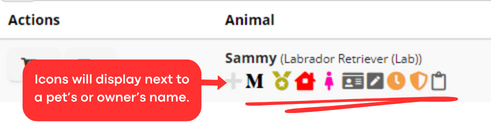
How to add Icons:
- Press the '+' button next to the animal or owner's name to add icons.
- This will bring up a menu of all available icons, select which Icon you would like to add.
- If necessary, write any notes in the 'Type comments here' field.
- You may also check off 'Create Employee Note?' if the information is important and would be a good fit to add to the client's notes.
- Press 'Add Icon' to save!
How to delete Icons:
- Press the '+' button next to the animal or owner's name to get to the icon menu screen.
- Click on the icon you would like to delete.
- Press the 'Delete' button to save!
Types of Icons:
Icons that can be assigned include:
- Behavorial: Any important behavioral characteristics of a pet.
- Playtime type: Small, Medium, Big dog group, or Individual play.
- Typically gets: What a client typically gets in terms of activity package, room type, and more.
- Gender neutral name: If a pet has a gender neutral name, assign the Male or Female icon to clarify the pet's gender. (Ex. Charlie)
Basic Icons Overview:
These icons must be assigned to all our lodging guests.
|
ROOM TYPE
|
PACKAGE TYPE
|
PLAY TYPE
|

.png)
.png)
.png)
.png)
.png)
.png)
.png)
.png)
.png)
.png)
.png)
Icons that are system-generated and automated include:
- Vaccination "Shield" Icon: a red shield icon will appear if records are needed, an orange shield will appear if a pet's records will expire within 30 days, and no shield icon will appear if the pet is all up-to-date.
- Appointment card: shows details about a pet's reservation, grooming cost history, and animal notes.
- Check-in questions Icon: Allows you to edit check in questions easily (only for boarding reservations)
- Dashboard details Icon: displays reservation notes, and some info on the animal and owner.
- Employee notes Icon: an easy way to access and add both Owner notes and Animal notes in one place.
Owner Icons include:
- Card on file icon
- Punchcard icon (hover over this Icon to see remaining punches, and punchcard type!)
- On account balance
- Confirm or fix phone number Icon
- Info checked: Use this after we confirmed all contact information on file.