Gingr Dashboard
Overview
The dashboard is the main control center. It displays pets expected to arrive and depart, pets currently checked in, and much more. This is a basic overview of the dashboard.
- There are four sections/tabs on the dashboard:
- ‘Expected Today’ section shows all reservations and appointments scheduled to come in today.
- ‘Going Home Today’ section shows all reservations and appointments scheduled to leave today.
- ‘Checked-In’ shows every single reservation or appointment checked in currently.
- ‘Requested’ shows any reservations requested online from a client.

You can search:
- Animal name
- Last name
- Package (Gold, Silver, Bronze) to view all pets with a particular package.
- Boarding (Search to see only boarding pets)
- Daycare (Search to see only daycare pets)
- And more!
Keep in mind you can only search for one term at a time.
Press the columns at the top of list to sort in alphabetical or numerical order by Animal's Name, Owner's Name, Type of Reservation, Lodging Number, Services, Start Date, and End Date.
Quick Check-In:
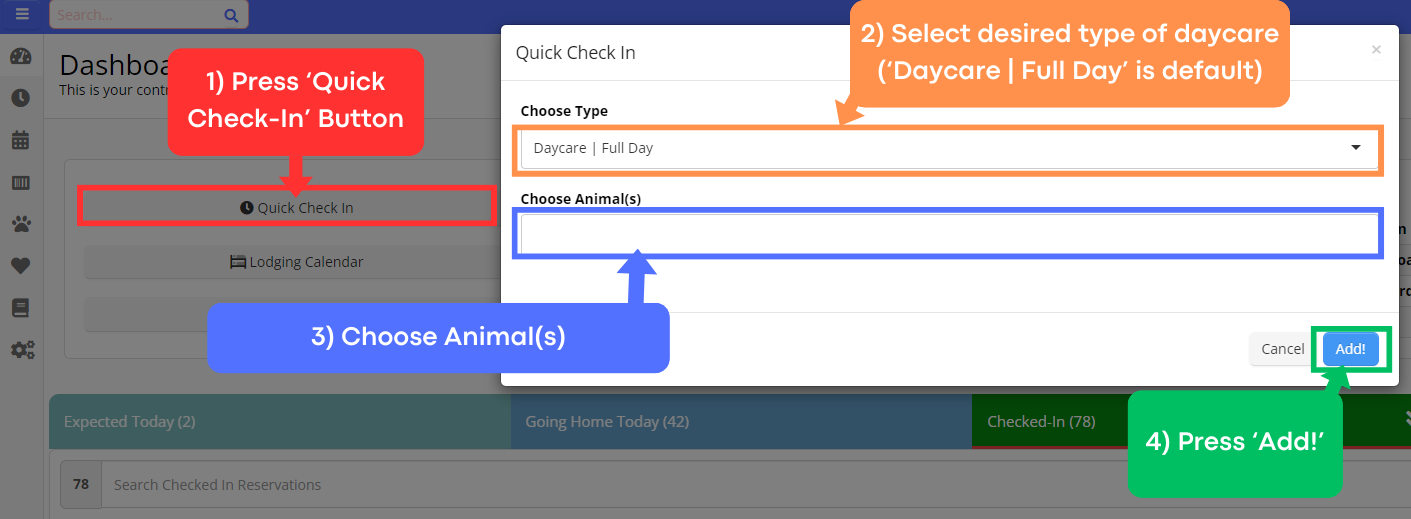
- This is a fast way to check in a daycare guest if they come in without a reservation. Please notify the customer of this so we can reserve a spot for them in the future (reservations are required for all types of services!).
- Press ‘Quick Check-In’ Button
- Select the desired type of daycare (‘Daycare | Full Day’ is default)
- Choose Animal(s)
- Press ‘Add!’
Lodging Calendar Button:
- Use this to navigate to the lodging calendar, which displays every guest's room number. If you checked out a pet and forgot what room the pet is in, navigate to the Lodging Calendar and do a 'CTRL + F' search for the pet's name. Be sure to keep in mind last name as well! (We have lots of Bellas!)
Paws Document Button:
- This is a Google Sheets document where we keep end of day, tour scheduling, price lists, and much more.
Employee login feature (where your name is, on top right of screen):
- Ensure you are logged in whenever you are using the computer, and at the start of your shift.
- Use the quick login feature to log yourself in if you are not already logged in.
- At the end of your shift or when you are finished using the computer, press the logout button.
Cart button:
- Just like shopping on Amazon, reservations and appointments are added to the shopping cart, and checked out from there.
- Please see the "Checking Out Pets" procedure for a detailed guide on how to check out clients.
Text Message Feature on top right of Screen:
- Gingr has a built-in text messaging feature where we can easily send and receive messages from clients. The text message icon will have a red bubble with a number indicating there are unread messages. As soon as you click an unread message, it will be marked as read. Please respond to any unread text messages if applicable.
Notification bell button:
- Shows system-generated notifications. Don't worry about this section - it just repeats things that are located and taken care of elsewhere in Gingr.