Making Notes on Reservation, Appointment, or Service
Operating Procedure
When booking a reservation or appointment:
- For boarding or daycare, add notes to the 'Booking Notes | BUSINESS ONLY' section.
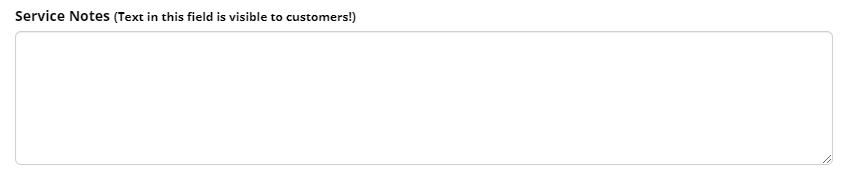
- For grooming, add notes to both the 'Booking Notes | BUSINESS ONLY' section', AND the 'Service Notes' section.
- Note: the 'Service Notes' section is visible to customers through the online portal.
Adding notes to ADDITIONAL SERVICE when booking a reservation or appointment:
- To add a note to an additional service, select the desired additional service and write the note here:
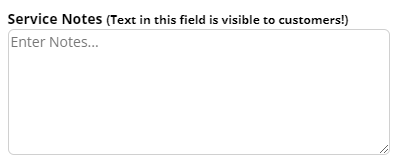
- Note: if a pet is not supposed to get a gourmet treat, it must be written here.
Adding notes to an existing reservation or appointment:
- Navigate to the desired reservation or appointment.
- Click the pencil icon at the top right of the screen.
- Select 'Edit Booking Details'
- For boarding or daycare, add notes to the 'Booking Notes | BUSINESS ONLY' section.
- For grooming, add notes to both the 'Booking Notes | BUSINESS ONLY' section', AND the 'Service Notes' section.
- Press 'Save' at bottom of screen to save.
Adding notes to an existing additional service:
- Navigate to the desired reservation or appointment.
- Open the 'Services' tab.
- Select the menu button (three lines, looks like a hamburger), next to the desired additional service.
- Select 'Edit Service'.
- Write any notes under the 'Service Notes' section.
- Press 'Save Changes!' at the bottom of the screen to save.