Checking & Responding to Emails and Updating Immunization Records
Operating Procedure
This procedure will ensure all emails are viewed, all files are updated, and all clients are responded to, in addition to updating pet's immunization records.
All emails are responded to throughout the day, and all emails must be completed before the day ends. Please check the spam folder as well.
Logging into our company email:
- Go to www.mail.yahoo.com
- Login:
- Use the email: pawspet@pawspet.com (Note: our actual email address is info@pawspet.com, but when signing in, you must use pawspet@pawspet.com.)
- Use the autofilled password to sign in. (ask a manager for the password if it is not autofilling)
- Login:
If there are any emails in the inbox, they must be responded to. Most emails are vaccination records being sent over.
How to handle vaccination record emails:
- Open the email sent from the client or veterinarian.
- Open the attachment(s) sent in the email.
- Navigate to the specific owner's file in Gingr.
- Either click on the red or yellow shield icon next to the pet's name, or open up the 'Immunizations' section on the animal's profile to open the immunization management screen.
- On the immunization management screen, enter the new expiration dates that the client had sent over.
- Don't forget to press save when you are done!
After the new expiration dates have been updated, upload the documents to the owner's file on Gingr:
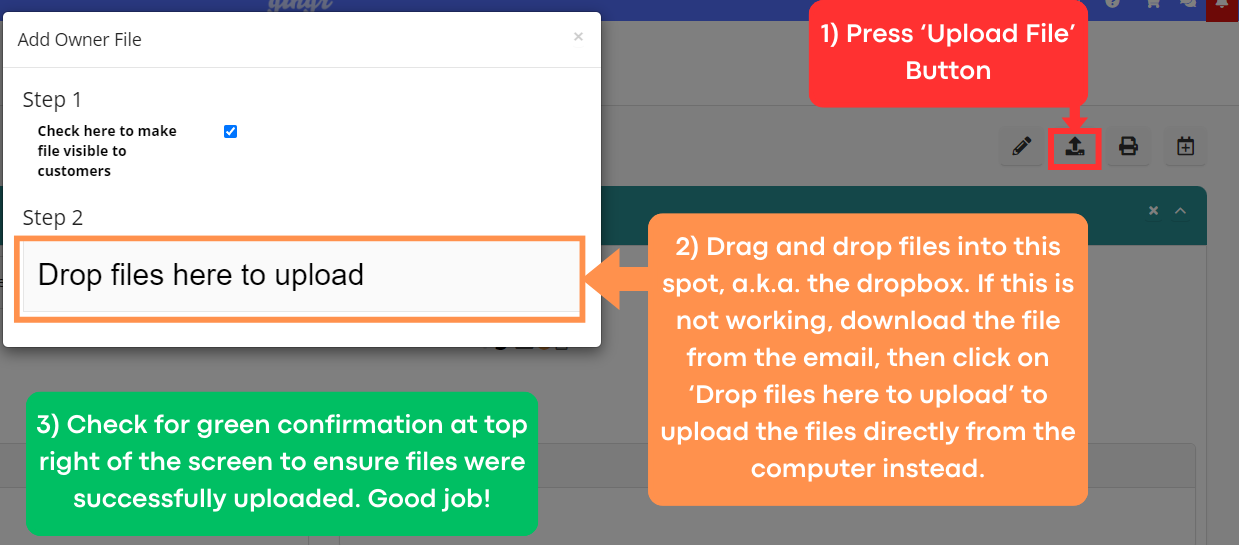
- On the owner's file in Gingr, click on the 'Upload File' button.
- Drag and drop files into this spot, a.k.a. the dropbox. If this is not working, download the file from the email, then click on ‘Drop files here to upload’ to upload the files directly from the computer instead.
- Check for green confirmation at top right of the screen to ensure files were successfully uploaded. Good job!
After files were updated and documents were uploaded, respond to the email:
If the client is up to date with everything, respond to the email saying they are all up-to-date in our system.
- Example:
|
Thank you for sending this information over! [Pet's Name] is now all up to date in our system!
Have a Pawsome day! |
If the client is missing record(s), respond to the email with what we are missing.
- Example:
|
Thank you for sending this information over! It looks like we still need [Pet's Name]'s [Missing Vaccine Name].
Have a Pawsome day! |