Checking Out Pets
Operating Procedure
To check out any reservation or appointment:
- Greet customer with warm smile, ask who they are picking up (pet's first AND LAST NAME!).
- Start by looking at what room the pet is in from the dashboard.
- From the dashboard, click the cart button to add the reservation or appointment to the cart.
- If a dog has daycare punches, there will be a "quick checkout" button, which will automatically check the dog out. This button will work only if the daycare reservation has no add-ons attached. If the daycare reservation has services attached, proceed to the next step.
- Navigate to the check-out page by clicking the cart icon on the top right of the screen.
- Based on the reservation or appointment type, follow the steps below this checklist to ensure accurate check-outs.
- Come back here once you have followed the steps.
- Once you have followed the steps below this checklist and confirmed the invoice has the correct pricing,
- Press the 'Check Out With Payment' Button.
- Select payment method
- If using credit card,
- Gingr may show a credit card may already be on file. Ask client if it is ok to use it.
- If a credit card is not on file already, select the 'Credit Card' payment method.
- If the client has the card in person, select 'WisePos E' to connect to the credit card terminal to swipe or tap it. If the credit card terminal is not working, enter it manually into Gingr:
- You may also manually enter the credit card information into Gingr. Select 'Enter Card Number in Gingr' to do this.
- Always ask client if they would like to save the new card to their file for future use. In this case, select the 'Save Card to File?' option BEFORE processing the credit card.
- If using cash,
- Select 'Cash' payment method.
- Collect appropriate amount of cash from customer, and put it in the cash drawer (there is a set of keys for the cash drawer in each reception desk.) Give back any change.
- If using check,
- Select 'Check' payment method.
- Collect check, ensure it has the accurate price. Stamp the back of the check with one of the "Pay to the Order of..." stamp machines that is in the reception desk drawers.
- Place check in cash drawer.
- If the payment method is split or if there is a store credit or gift certificate:
- If there are multiple payment methods, enter the desired amount of the first payment method.
- For any additional payment methods, select 'Add Payment Method.'
- If there is a store credit, mention this at checkout to the client and use this payment method first.
- If the customer brings in a coupon, use the 'Gift Certificate' or 'Customer Appreciation' payment method first, enter the amount of the gift certificate or coupon, and proceed to collect the remaining balance with the client's desired form of payment. Be sure to collect and discard of any coupons or gift certificates from clients, as they can only be used once.
- Charge the balance and ensure there is no remaining balance left.
- Once payment has been processed, ask client if they would like an emailed or printed receipt. Gingr will automatically bring up this screen after payment is processed.
- If you forgot what room the pet is in, navigate to the 'Lodging Calendar' and do a 'CTRL + F' search for the pet's name. Be sure to keep in mind last name as well! (We have lots of Bellas!)
- Obtain the pet's belongings and give them to the client first. Use the leash if they brought one in, and:
- Proceed to get pet(s) from their room
- If a pet is not in their room, they may be in playtime or grooming. Check these two areas and if still not located, ask coworkers as they will likely know where the pet is.
- Ensure the right pet is returned to owner by checking ID collar if applicable and asking coworkers if you are unsure.
- Bring them to their owner!
- "Have a wonderful rest of your day!"
Lodging Departures
Once the reservation is added to the cart,
TO ADJUST SOMETHING OFF AN INVOICE:
- Add an open line item to the cart. Select type as 'Price Adjustment,' enter a description of what the adjustment is, and enter the price in.
Adjusting peak rates:
If the departure day is a peak date and late checkout is not charged, you must remove one peak rate charge from the invoice. This is because Gingr charges the peak rate daily, but the lodging rate nightly. The price of a peak charge is $10 per day. Please add an open line item of 'Price Adjustment', type 'Peak' under description, and enter in -10. If there are multiple pets in the family, you must add a -10 peak line item for each pet in the family. REMINDER: THIS IS ONLY WHEN THE LAST DAY IS A PEAK DATE, AND THE LATE CHECKOUT FEE IS NOT CHARGED.
Late checkout: Cost of one nightly lodging rate, will be charged:
| Normal: | If has Bath or Groom: |
|
After 11:00AM |
After 3:00PM* 5:00PM on Sundays |
HOW TO WAIVE LATE CHECKOUT (if applicable):
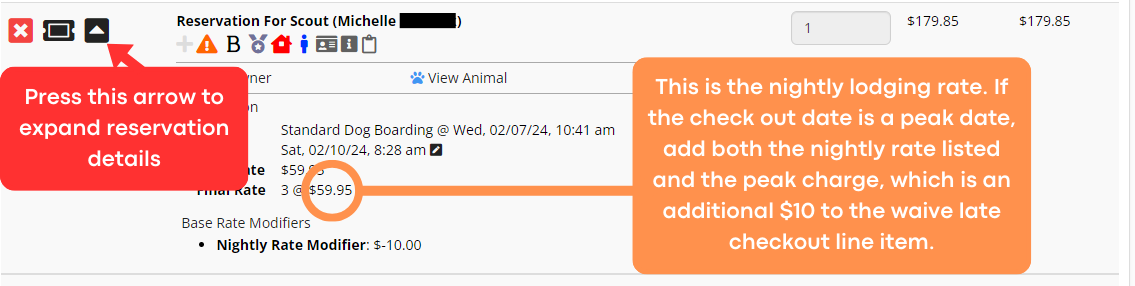
- Once item is in cart, start by seeing what the nightly lodging rate is. Click the arrow next to where it says "Reservation For [Pet's Name]" to locate this.
- If the departure day is a peak date, add both the nightly lodging rate listed and the peak charge, which is an additional $10 together to get a total late checkout fee. (Example: if the rate says $59.95, and it is a peak date, add $10 to get $69.95).
- Add an open line item: Use the 'Waive Late Checkout | Grooming Service' and enter in the lodging price you discovered in step 2. (Make sure it is a negative price)
- Add the discount to the cart, and proceed to the next steps of the checkout process.
You must review each item, line by line, to ensure the receipt is accurate.
To ensure all information is correct, follow this information:
Daycare, Grooming, and Retail Invoices:
Once again, at check out you must review each item, line by line, to ensure the receipt is accurate.
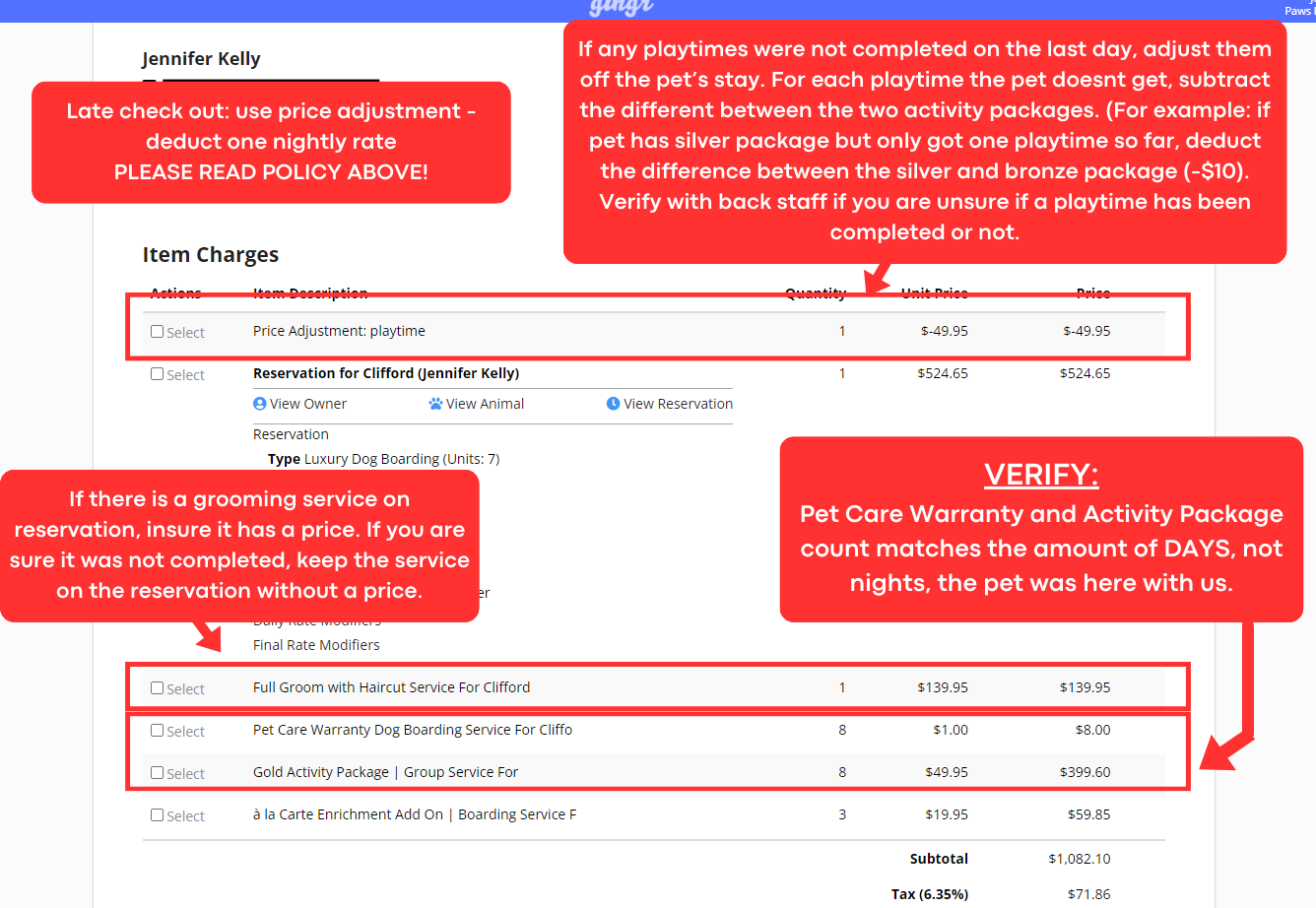
- If there is a grooming service on reservation, insure it has a price. If you are sure it was not completed, keep the service on the reservation without a price, as we want to keep a record of it.
- Ensure pet care warranty quantity is correct
HOW TO CHECK OUT A CUSTOMER FOR A PUNCHCARD (DAYCARE PACKAGE) OR A RETAIL ITEM:
- Navigate directly to the cart (press the cart button on the top right of the screen).
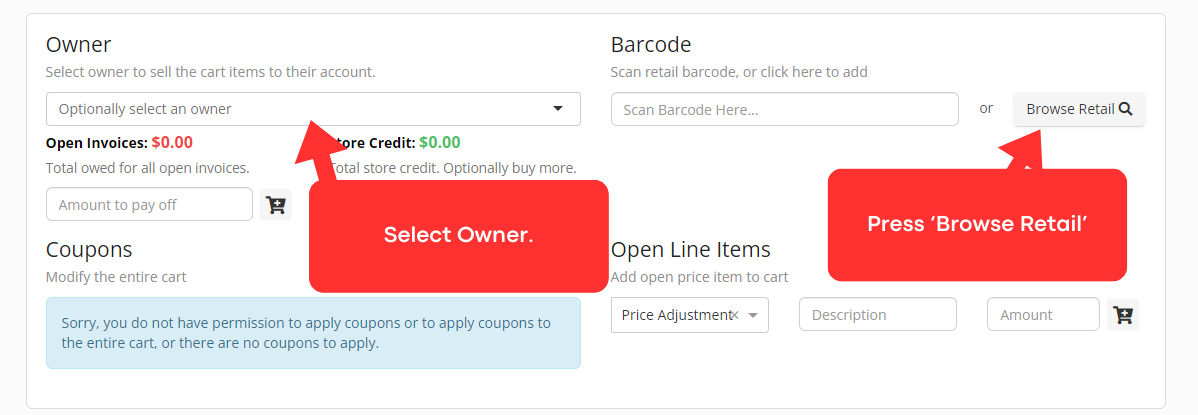
- Select the owner.
- Press 'browse retail'
- If item desired is a punchcard, select the desired punchcard option.
- If item is a retail item, you can either scan the barcode with a barcode scanner, or search for it on the browse retail screen.
- If retail item is not showing up anywhere, add an 'Other (Read Description) - Taxable' Open line item. Add a description of what the item is and the price. After the customer has left, tell a manager that the item could not be located in Gingr.
- Check out the customer with their preferred payment method(s) - if needed, see information above for detailed instruction on how to process payment.
IF THE QUICK CHECKOUT BUTTON IS NOT WORKING (Daycare):
- If customer has a punchcard and it is not working, ensure the punchcard type they have matches the daycare reservation type they are checked in for.
IF THERE ARE BOTH ADD-ONS AND A DAYCARE PUNCH BEING USED:
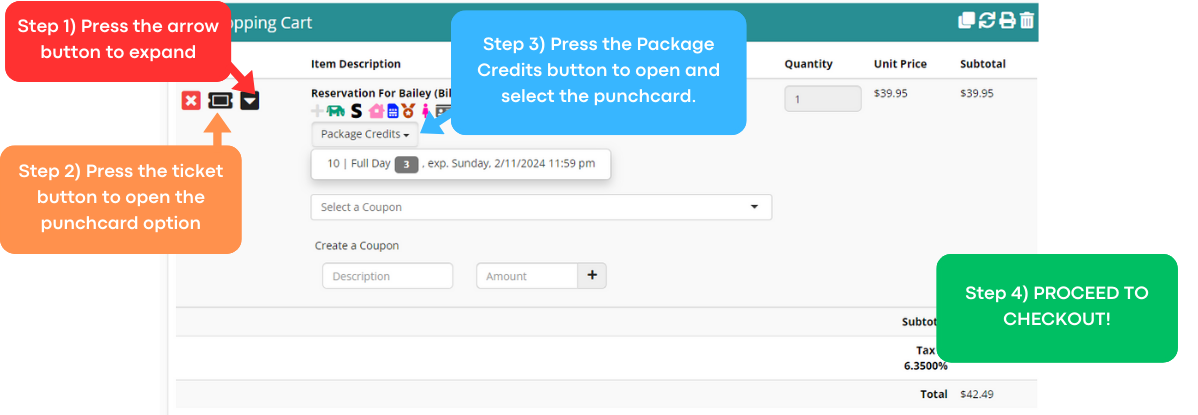
- If there are add-ons (such as a grooming service) to a daycare reservation with a client that has a punchcard, you must add the daycare reservation to the cart and follow the steps below: