Booking Reservations (Boarding and Daycare)
Operating Procedure
This procedure will ensure that all boarding and daycare reservations are booked accurately, efficiently, and easily!
Important Notes:
- We only require deposits for boarding reservations, not daycare. One deposit per family is required, not per pet.
- If a pet stays for more than 2 weeks, we charge their card on file every week and apply a pre-payment to their reservation. We must let the client know of this, and we must keep a card on file for these situations.
- Dogs are mandated to have a play package, but cats are not.
- Please use the icons to see what the client typically gets when booking a reservation.
- If booking a daycare reservation, ensure the correct daycare type is being booked - there are lots of different options, so be sure to check client's history and ask the client if you are unsure.
DOG BOARDING:
- Start by navigating to the 'New Reservation' screen. There are two ways to achieve this:
- On the left hand side menu on Gingr, go to Reservations > New Reservation.
- Or, on pet or owner profile screen, press the calendar with plus button at the top right of the screen, and press 'New Reservation.'
- Ensure pet(s)' name is selected under the 'Pet's' section. Ensure last name is correct and the correct pet(s) are selected.
- If a pet has Icons for their desired room, play package, and play type assigned, they will automatically display once you go to create a reservation. Please use this data in the proceeding steps.
- Select correct booking type under the 'Type' section.
- Select start date and time, and end date and time.
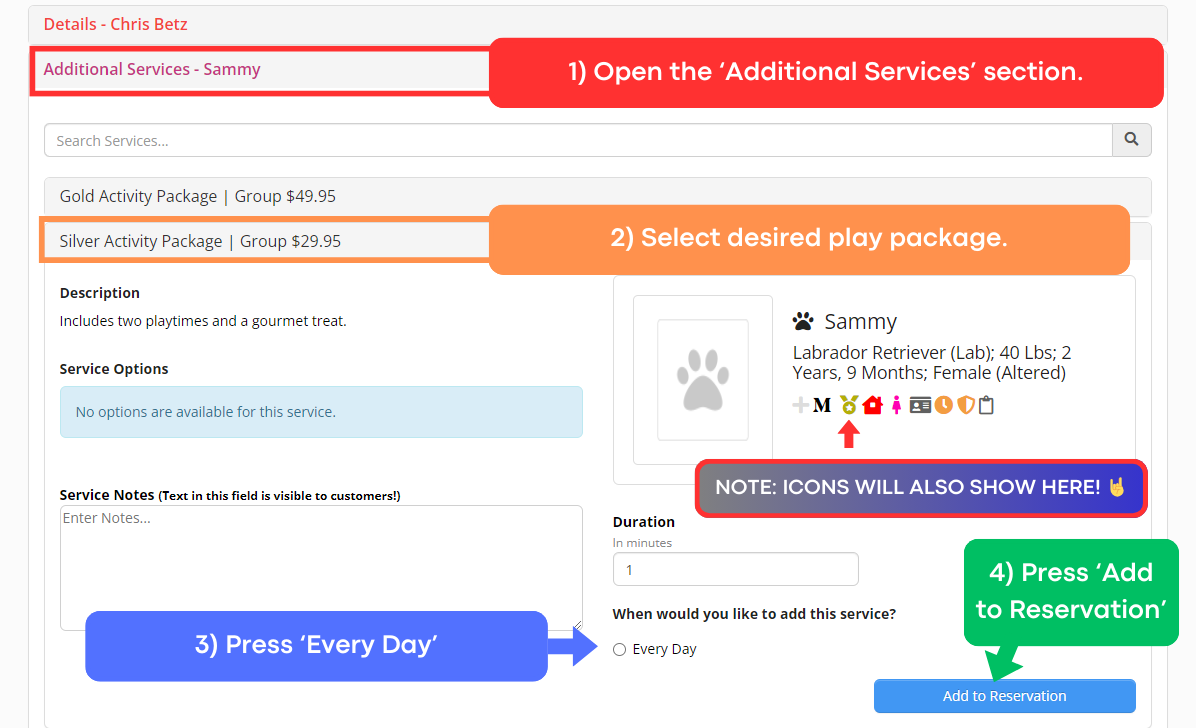
- Under additional services, assign the correct play package:
- Open the ‘Additional Services’ section.
- Select desired play package.
- Press ‘Every Day’
- Press ‘Add to Reservation’ (if you do not do these steps in order, it will not save.)
- Note: if a client is existing, use the displayed icons to view what the client typically gets, use this information to assign play package and boarding type.
- If desired, assign any grooming appointment. See below if you need help with this.
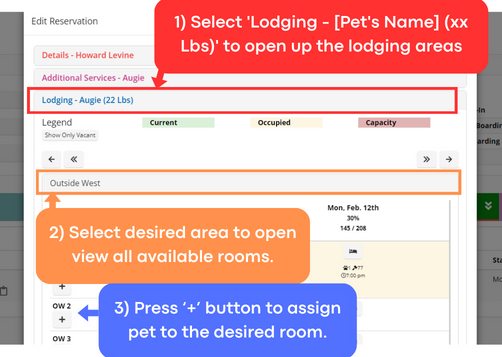
- Select 'Lodging - [Pet's Name] (xx Lbs)' to open up the lodging areas - we want to assign a room for the dog.
- Select the desired lodging area to open view all available rooms.
- Press ‘+’ button to assign the pet to the desired room. (Yellow means a pet is already occupying that room, you must select an open room for all dates of stay).
- If necessary, write any reservation notes under the 'Notes' section.
- If customer asks for an estimate, you can use the estimate section to see what each individual price is. DO NOT give totals for boarding stays, since there are many factors that can change the total price of the reservation before the pet leaves. However, you may give them each individual price.
- Once all details are entered, press 'Save' at the bottom of the screen.
- Take the $50 deposit (one per family) see "Checking Out Pets" procedure if you need help with processing payments.
- If you need to access the reservation for any reason after you press save, you can do so by clicking on the confirmation link at the bottom of the screen as soon as you press save, or you can do so by searching for the client's name in Gingr and go to the reservations section to locate the reservation.
CAT BOARDING:
- Start by navigating to the 'New Reservation' screen. There are two ways to achieve this:
- On the left hand side menu on Gingr, go to Reservations > New Reservation.
- Or, on pet or owner profile screen, press the calendar with plus button at the top right of the screen, and press 'New Reservation.'
- Ensure pet(s)' name is selected under the 'Pet's' section. Ensure last name is correct and the correct pet(s) are selected.
- If a pet has Icons for their desired room, play package, and play type assigned, they will automatically display once you go to create a reservation. Please use this data in the proceeding steps.
- Ensure 'Cat Boarding' option is selected under the 'Type' section.
- Select start date and time, and end date and time.
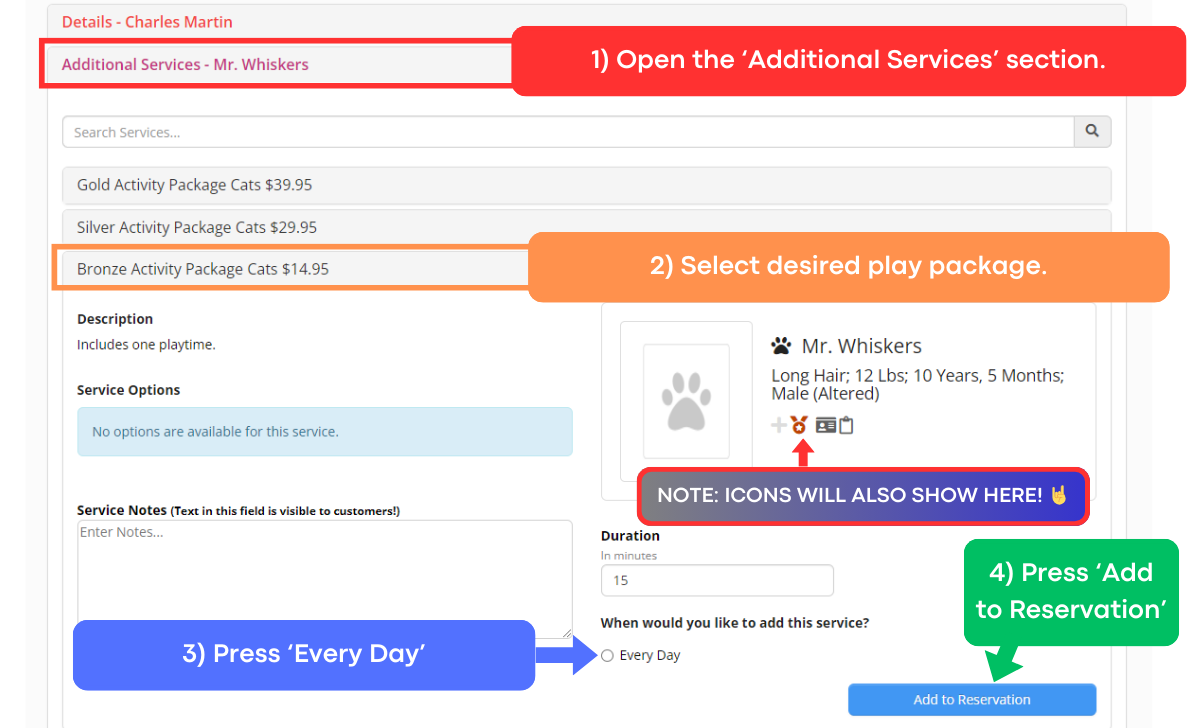
- Under additional services, assign the correct play package, if desired:
- Open the ‘Additional Services’ section.
- Select desired play package.
- Press ‘Every Day’
- Press ‘Add to Reservation’ (if you do not do these steps in order, it will not save.)
- Note: if a client is existing, use the displayed icons to view what the client typically gets, use this information to assign play package.
- Next, assign the cat a room:
- Select 'Lodging - [Pet's Name] (xx Lbs)' to open up the lodging areas - we want to assign a room for the cat.
- Select the 'Cat Room' lodging area to view all available rooms.
- Press ‘+’ button to assign the pet to the desired room (Yellow means a pet is already occupying that room, you must select an open room for all dates of stay).
- If necessary, write any reservation notes under the 'Notes' section.
- If customer asks for an estimate, you can use the estimate section to see what each individual price is. DO NOT give totals for boarding stays, since there are many factors that can change the total price of the reservation before the pet leaves. However, you may give them each individual price.
- Once all details are entered, press 'Save' at the bottom of the screen.
- Take the $50 deposit (one per family) see "Checking Out Pets" procedure if you need help with processing payments.
- If you need to access the reservation for any reason after you press save, you can do so by clicking on the confirmation link at the bottom of the screen as soon as you press save, or you can do so by searching for the client's name in Gingr and go to the reservations section to locate the reservation.
DOGGIE DAYCARE:
- Start by navigating to the 'New Reservation' screen. There are two ways to achieve this:
- On the left hand side menu on Gingr, go to Reservations > New Reservation.
- Or, on pet or owner profile screen, press the calendar with plus button at the top right of the screen, and press 'New Reservation.'
- Ensure pet(s)' name is selected under the 'Pet's' section. Ensure last name is correct and the correct pet(s) are selected.
- If a pet has Icons for their desired room, play package, and play type assigned, they will automatically display once you go to create a reservation. Please use this data in the proceeding steps.
- Select correct booking type under the 'Type' section.
- Select date.
- If desired, assign any grooming appointment. See below if you need help with this.
- If client is a first time daycare, assign the 'First Day!' service under the 'Additional Services' section.
- If necessary, write any reservation notes under the 'Notes' section.
- If customer asks for an estimate, you can use the estimate section to quickly see what the daycare price is.
- Once all details are entered, press 'Save' at the bottom of the screen.
- It will display a notice saying, "A lodging must be selected for each date of this reservation." Proceed to press 'Override & Create,' as we do not reserve rooms for daycare reservations in advance.
- If you need to access the daycare reservation for any reason after you press save, you can do so by clicking on the confirmation link at the bottom of the screen as soon as you press save, or you can do so by searching for the client's name in Gingr and go to the reservations section to locate the reservation.
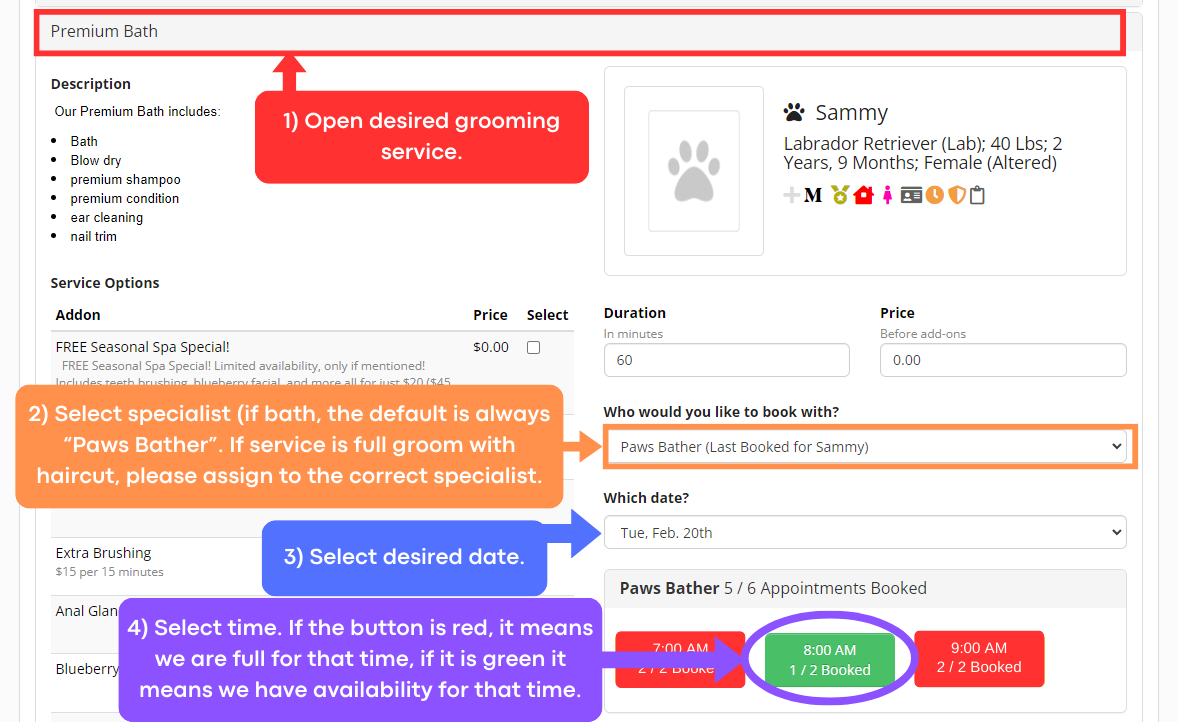
How to add a grooming service on to boarding or daycare reservations:
- In the editing reservation screen,
- Open the 'Additional Services' Section, then
- Open desired grooming service.
- You may write notes under the 'Service Notes' section if necessary.
- Select specialist (if bath, the default is always “Paws Bather”. If service is full groom with haircut, please assign to the correct specialist.
- Select the desired date.
- Select time. If the button is red, it means we are full for that time, if it is green it means we have availability for that time.
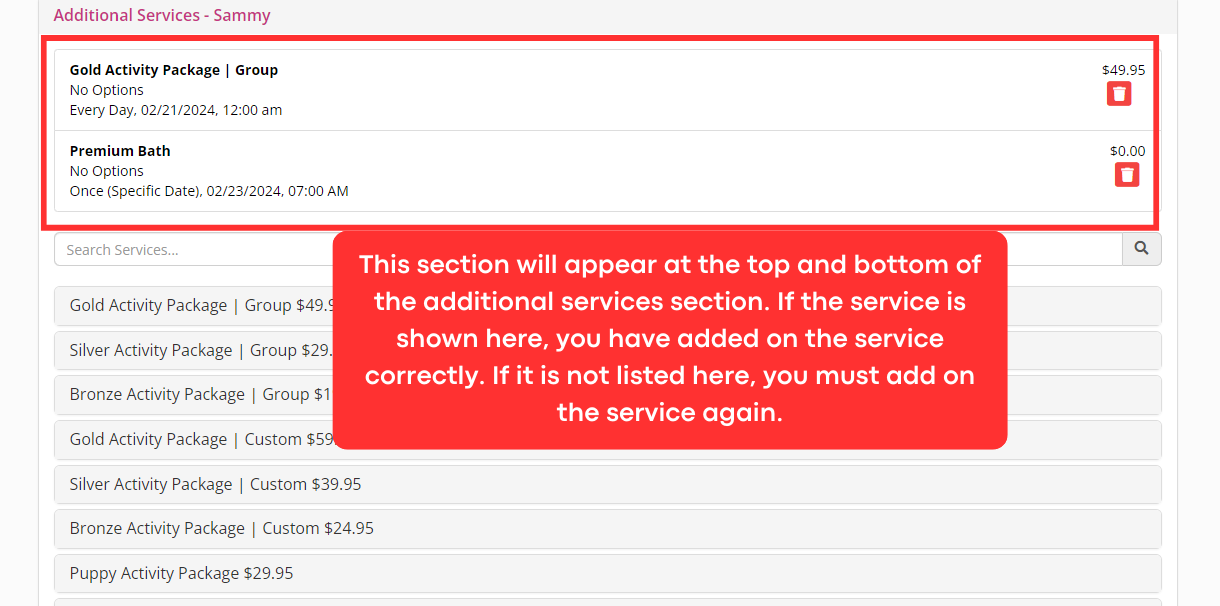
How to check to see if services were added on successfully: